This image will be the starting frame of your video
0 / 5000
Generates video with AI audio (audio may be disabled for sensitive content)
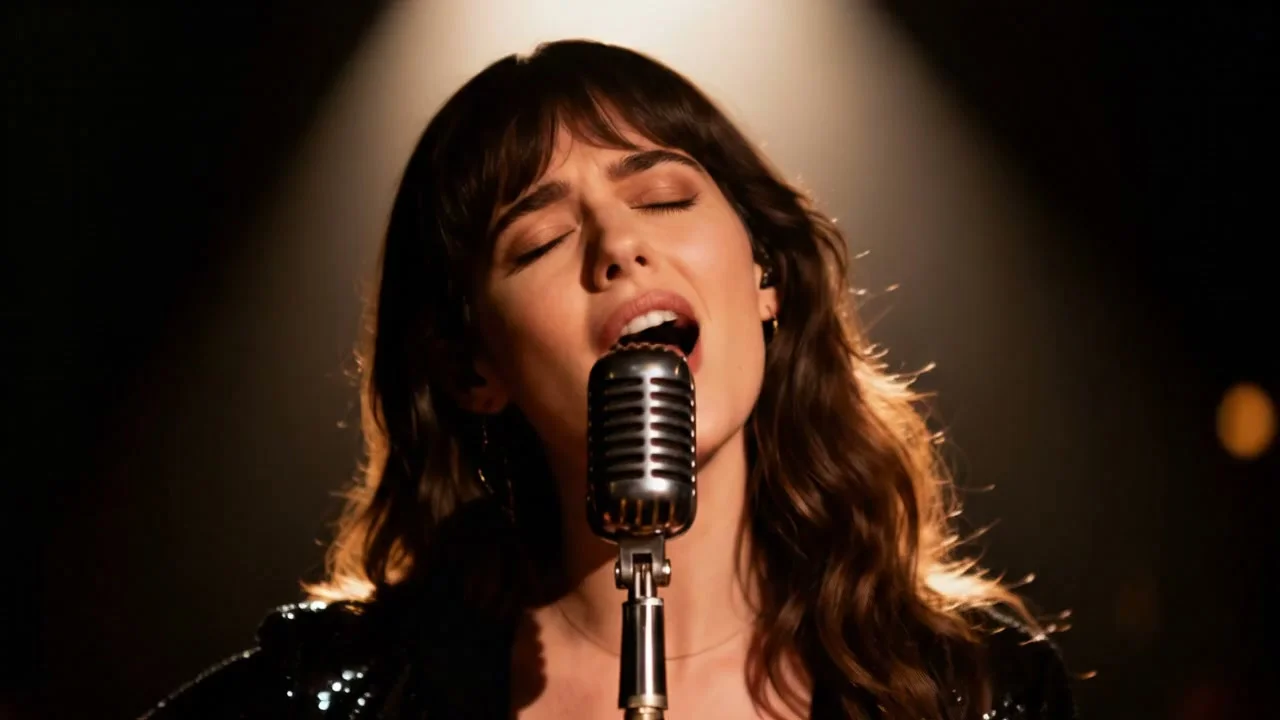
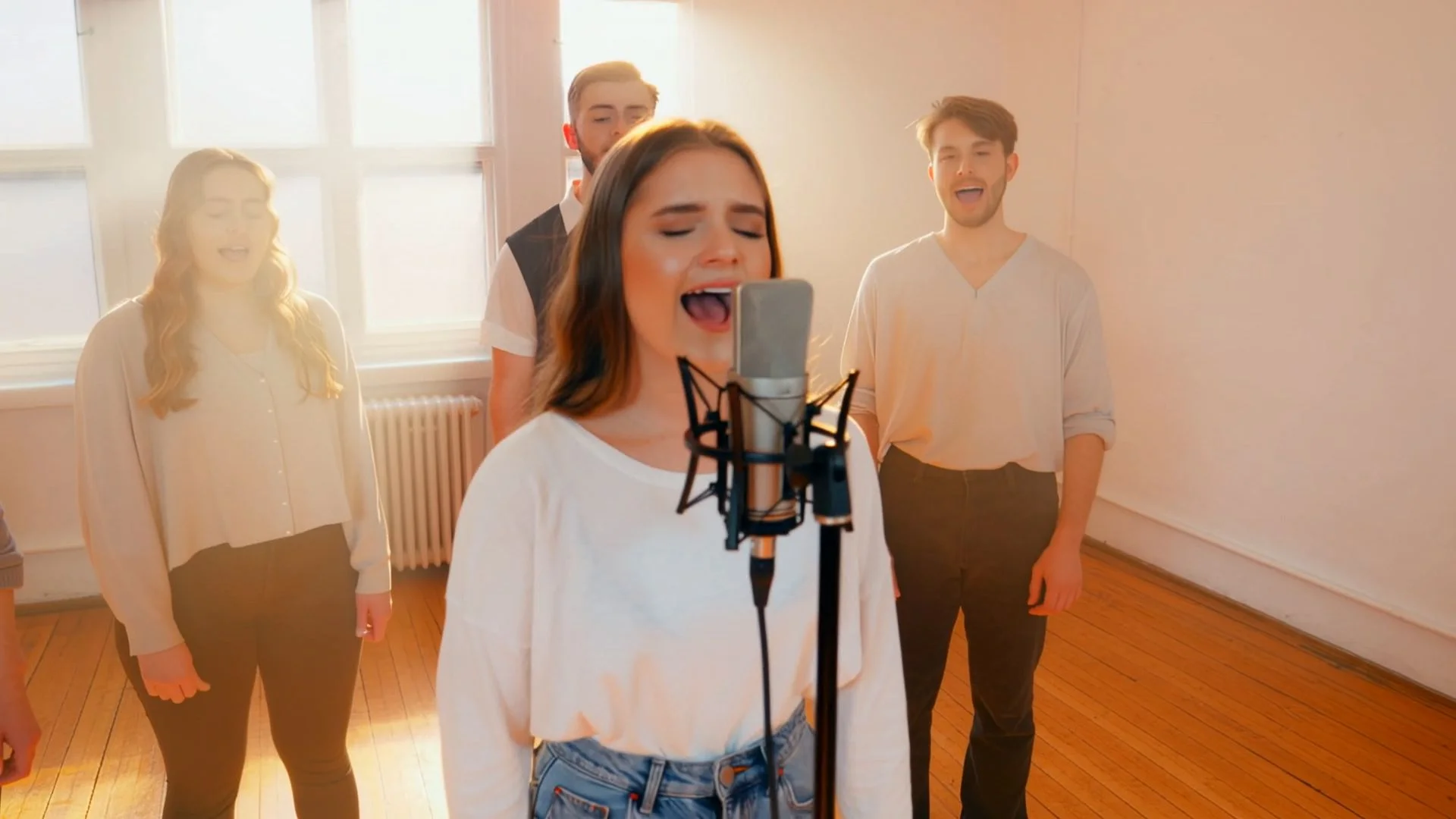

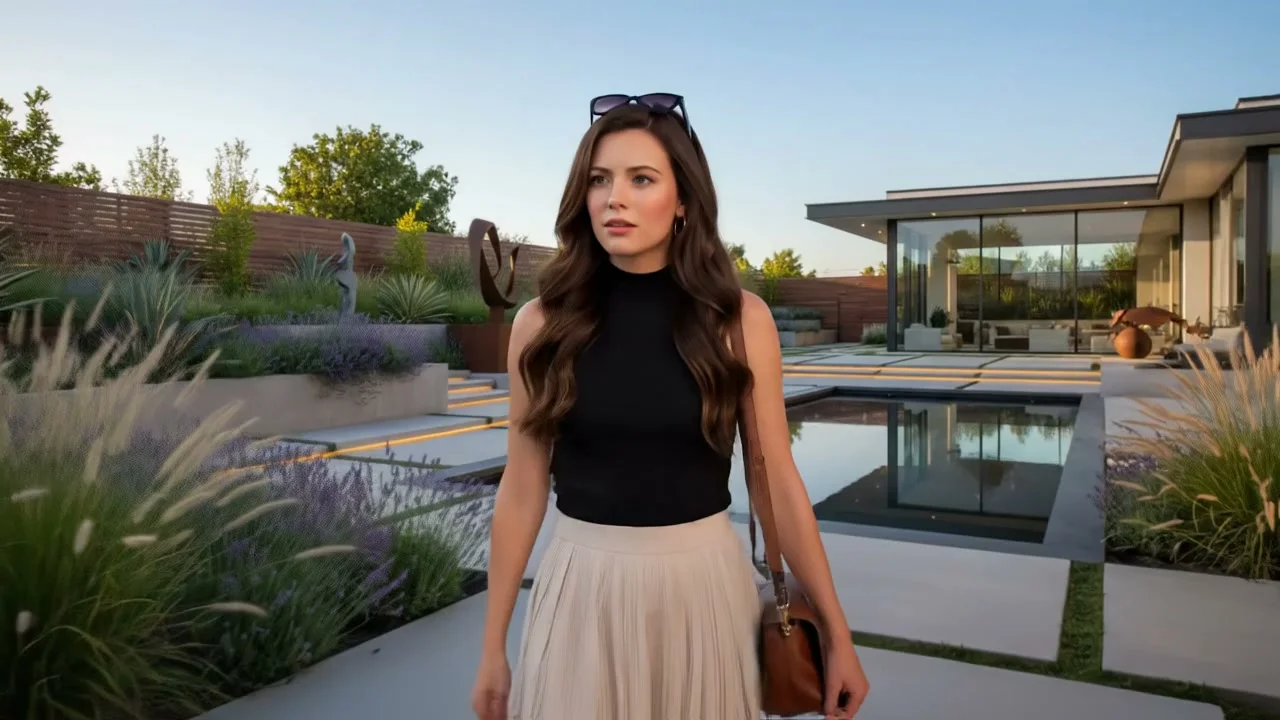
Veo 3.1 AI Video Generator
GeminiPro gives you direct access to Veo 3.1 — Google DeepMind’s cinematic AI video model. Generate 8-second videos with natively synthesized dialogue, sound effects, and ambient audio in a single pass. New in Veo 3.1: portrait 9:16 mode, video extension, first-and-last frame control, and multi-image reference input. No video editing experience required.
What Is Veo 3? Google DeepMind’s Cinematic AI Video Model
Veo 3 is Google DeepMind’s third-generation AI video generation model. Unlike most AI video tools that require separate audio post-production, Veo 3 synthesizes video and audio simultaneously — generating realistic dialogue, ambient sound, and music that is precisely synchronized with the visuals. The model excels at physics-accurate motion, from fluid dynamics to natural character movement, producing footage that looks grounded in real-world physical laws.
Up to 8 Seconds
Max Video Length
Native AI Audio
Audio Generation
Up to 4K
Max Resolution
What’s New in Veo 3.1
Veo 3.1 introduces five major capabilities that expand creative control beyond the original Veo 3.
Portrait Mode (9:16)
Vertical video output built for TikTok, Instagram Reels, and YouTube Shorts — generate content in the exact format short-form platforms expect.
Video Extension
Continue a previously generated clip seamlessly. The model maintains visual style, subject appearance, and scene context — enabling longer narrative sequences through chained generations.
First & Last Frame Control
Define the exact opening and closing frames of your scene. Veo 3.1 generates a cinematically coherent sequence between your specified start and end points.
Multi-Image Reference Input
Upload multiple photos to guide character appearance, scene composition, or visual style. Veo 3.1 uses your references as identity and style anchors across the generated clip.
Improved Subject Consistency
Characters and objects maintain their appearance more reliably across the full 8-second clip duration, reducing the frame-to-frame drift that affected earlier models.
Veo 3 vs Kling: Which AI Video Generator Is Right for You?
Both are leading AI video platforms in 2026. Here’s how they compare across the dimensions that matter most.
| Veo 3.1Best cinematic quality | Kling 2.6 | Kling 3.0 | |
|---|---|---|---|
| Developer | Google DeepMind | Kuaishou | Kuaishou |
| Max Duration | Up to 8s | 5–10s | 3–15s |
| Native Audio | Yes — dialogue, SFX & music | Limited | Limited |
| Max Resolution | Up to 4K | Up to 1080p | Up to 4K |
| Portrait 9:16 | Yes | Yes | Yes |
| Multi-Shot | — | — | Yes |
| Camera Control | Standard | Good | Advanced |
| Image Reference | Multi-image | Single image | Multi-image |
| Video Extension | Yes | — | — |
| Best For | Cinematic quality & AI audio narratives | Motion-driven & longer clips | Multi-shot narratives & advanced camera |
Choose Veo 3.1 for cinematic quality and AI-audio-driven narratives. Choose Kling for longer clips, multi-shot sequences, and advanced camera motion control.
AI Video Models Available on GeminiPro
Generate with Google Veo 3.1 or Kuaishou Kling — each optimized for different creative and production needs.
Veo 3.1
Google DeepMind · Best cinematic quality
Google’s flagship cinematic AI video model. Generates 8-second HD clips with natively synthesized audio — dialogue, sound effects, and music produced in a single pass alongside the video.
Veo 3.1 Fast
Google DeepMind · Faster generation
The speed-optimized variant of Veo 3.1. Delivers the same cinematic Veo quality with significantly faster generation — ideal for rapid concept testing and iterative production.
Kling 2.6
Kuaishou · Longer clips & motion quality
Kling’s proven generation model delivering up to 10-second clips with excellent motion quality, strong subject-to-video consistency, and optional AI audio generation.
Kling 3.0
Kuaishou · Multi-shot & advanced camera
Kling’s most advanced model with multi-shot scene composition, up to 15-second generation, advanced camera motion controls, @Elements character reference support, and up to 4K output.
Wan 2.6
Alibaba · Natural motion quality
Wan 2.6 specializes in fluid, natural motion generation with strong support for both text-to-video and image-to-video workflows across 720p and 1080p resolutions.
Seedance 2
ByteDance · Audio-video co-generation
ByteDance’s joint-diffusion model generates audio and video simultaneously in a single pass — dialogue timing, background score, and sound effects stay frame-locked from the first render. Supports up to 15-second clips at 2K resolution with 8+ language lip-sync.
What Can You Create with Veo 3.1?
From cinematic short films to social media content — Veo 3.1’s quality and native audio unlock creative formats that previously required full production teams.
Film & Cinematic Storytelling
Short films, concept trailers, visual narratives
Create narrative short films, visual poetry, and cinematic scenes with realistic physics, natural character movement, and atmospheric audio all generated automatically.
Brand & Marketing Video
Product videos, brand campaigns, ad creatives
Produce polished product showcases, branded content, and advertising visuals with professional-quality output — at a fraction of traditional production time and cost.
Social Media Short-Form
TikTok, Instagram Reels, YouTube Shorts
Generate vertical 9:16 content for TikTok, Reels, and Shorts in portrait mode. Fast iteration means you can test multiple creative directions before publishing.
Educational & Tutorial Content
Explainers, tutorials, educational series
Illustrate complex concepts, create explainer visuals, and produce instructional content with narration-friendly audio that matches the on-screen subject matter.
How to Write Prompts for Veo 3: 3-Layer Framework
Veo 3 interprets structured, layered prompts better than short keyword inputs. Use this three-part framework for consistently cinematic results.
Layer 1 — Scene
Describe the subject, environment, and action with specific details. Replace vague terms with concrete ones: not “a person walking” but “a woman in a red coat walking through a snow-covered European plaza at dawn.”
Layer 2 — Camera
Specify the camera position (wide shot, medium close-up, drone view), camera movement (slow pan left, static, tracking shot), and lighting style (golden hour, overcast, studio three-point).
Layer 3 — Audio
Describe the sound environment you want: ambient sound (quiet forest, busy café, city traffic), dialogue tone, or specific sound effects. Veo 3 uses these cues to generate synchronized audio.
Cinematic Scene
Short film opening
“A lone lighthouse keeper standing at the edge of a cliff in a storm, rain-soaked coat whipping in the wind, dramatic low-angle shot looking up at him against crashing waves below, overcast grey sky, tracking shot slowly pushing in, sound of roaring ocean and distant thunder”
Brand Commercial
Product launch video
“A sleek matte black smartwatch on a wrist against a modern minimalist office background, rotating close-up product shot with soft dramatic studio lighting, slow rotation revealing the screen, subtle ambient electronic music, sharp focus, 4K commercial quality”
Social Short-Form
TikTok / Reels content
“A barista pouring latte art in a warm, sunlit café, medium close-up shot from across the counter, soft morning light through large windows, steam rising from the cup, ambient café sounds and quiet background jazz, portrait 9:16 vertical format”
Nature Documentary
Wildlife or nature content
“A red fox walking cautiously through a snow-covered forest at dusk, wide shot from low angle, golden-pink light filtering through pine trees, fox pausing and looking toward camera, quiet forest ambience with wind through branches, slow cinematic pan following the fox”
Veo 3 Prompt Tips
- •Include camera movement — Veo 3 responds well to explicit camera instructions. “Tracking shot,” “slow push in,” or “static wide” give the model clear motion directives that dramatically improve output consistency.
- •Describe audio cues explicitly — Since Veo 3 generates audio natively, naming the sound environment gives it real signal to work with. “Ambient city traffic,” “soft orchestral score,” or “character speaks quietly” are more useful than hoping audio generates naturally.
- •Specify lighting type, not just quality — Instead of “nice lighting,” name the actual type: golden hour, overcast diffused light, neon backlit, or studio three-point. Veo 3’s physics simulation uses lighting descriptions to influence shadow casting and material rendering.
- •Use concrete subjects and environments — Specific, grounded scene descriptions consistently outperform abstract or generic ones. Naming materials, weather conditions, time of day, and location type all anchor Veo 3’s physical simulation to realistic outputs.
How to Use Veo 3 AI Video Generator on GeminiPro
Generate your first cinematic video in three steps.
Write Your Prompt
Describe your scene, camera style, and audio environment using the 3-layer framework. For image-to-video, upload reference photos to guide character appearance and visual style.
Choose Your Model
Select Veo 3.1 for maximum cinematic quality, Veo 3.1 Fast for quicker iteration, or Kling 2.6 / 3.0 for longer clips and advanced camera control.
Generate and Download
Your video generates asynchronously — you’ll be notified when it’s ready. Download in full quality for publishing, or continue the clip using Veo 3.1’s video extension feature.
Explore More AI Creation Tools on GeminiPro
From Nano Banana image generation to AI avatar and text-to-speech — GeminiPro’s full creative suite.
Veo 3 FAQ
Common questions about Google Veo 3 and Veo 3.1 on GeminiPro.
Generate Your First Veo 3.1 Video Today
Experience Google’s most cinematic AI video model on GeminiPro — native AI audio, physics-accurate motion, and portrait mode for short-form platforms, entirely in your browser.